Engine
The lightoros engine handles messages coming from the input pipes and pass them to the output pipes. The connection for input data is of type N:1 - several input pipes use the same channel to send their data to the engine. If data is coming from several input pipes at the same time, the priority level of the pipe defines the processing order. The engine forwards it to output plugins. The engine works with RGB color order. An image has it’s origin at the top left corner.
Pipes
The lightoros engine works with pipes to get data from some kind of input and forwards it to other components acting as output. According to the functionality they are called Input Pipes and Output Pipes. The lightoros engine can handle several input pipes and send received data to several output pipes. In that case all output pipes will get the same data.
Input Pipes
An input pipe has exactly one input source (Input) as first member of the pipe and might have optional members for modifing data (Transform) before passing it to the engine. For example when using lightoros for an ambilight installation it makes sense to resize an image created by the screen grabber to reduce the data size before passing it to the engine. Each input pipe runs in its own thread.
Output Pipes
An output pipe has exactly one output plugin as last member of the pipe and might also have optional members for modifing data (Transform) before the output plugin consumes it. Each output pipe runs in its own thread.
Plugins
The full power of the lightoros system is provided by different plugins. There are 3 types of plugins: Input, Output and Transform. Below is the list of currently available plugins.
Input
Input plugins are responsible for providing some usefull data. In most cases it’s some kind of RGB data. Input plugins are always the first member of an input pipe.
Filesystem
Filesystem plugins produce their data based on file content.
TPM2 File
- Kind
-
FilesystemInputTPM2 - Config
{
    files: array[string],
    repeat: boolean,
    delay_frame: number,
    delay_file: number
}- Description
-
Reads RGB data out of TPM2 files.
filesconfig parameter provides the list of absolute paths. Ifrepeatis set totruethe files will be played in a loop. With thedelay_frameparameter you can specify a delay in milliseconds between the single TPM2 frames.delay_fileparameter is used for a delay between the files in the list.
Grabber
Grabber plugins create RGB data out of some video source.
Framebuffer Grabber
- Kind
-
FramebufferScreenGrabberInput - Config
{
    path: string,
    delay_frame: integer
}- Description
-
Gets its screen data from a linux framebuffer. The
pathparameter provides the path to the framebuffer device (e.g./dev/fb0). Thedelay_frameparameter configures the time to wait before grabbing the next frame. Too small values may directyl affect the CPU usage.
X11 Grabber
- Kind
-
X11ScreenGrabberInput - Config
{
    delay_frame: integer
}- Description
-
Gets its screen data from the X11 server. The
delay_frameparameter configures the time to wait before grabbing the next frame. Too small values may directyl affect the CPU usage.
MacOS Screen Grabber
- Kind
-
OsxScreenGrabberInput - Config
{
    screen_index: integer,
    delay_frame: integer
}- Description
-
Gets its screen data from the MacOS screen/display. If you have several displays connected to your mac, provide the screen that should be grabbed using
screen_indexconfig parameter. Thedelay_frameparameter configures the time to wait before grabbing the next frame. Too small values may directyl affect the CPU usage.
Remote TCP Grabber
- Kind
-
RemoteScreenTcpGrabberInput - Config
{
    client_name: string,
    address: string,
    port: integer,
    width: integer,
    height: integer
}- Description
-
Gets its screen data from a remote grabber over network. The plugin acts as a TCP client and tries to connect to the remote screen grabber using
addressandportconfig parameters. After establishing a connection the plugin will send theclient_nameparameter to identify itself. The plugin also sends the parameterswidthandheightto tell the server the resolution of the target image it would like to receive. This will reduce the size of transfered data over the network.
Remote Named Pipe Grabber
- Kind
-
RemoteScreenPipeGrabberInput - Config
{
    path: string,
}- Description
-
Gets its screen data from a remote grabber on the same host using a named pipe. The plugin acts as a pipe reader using the
pathconfig parameter. Because a named pipe is unidirectional the plugin is only getting data and not sending any information to the grabber. This plugin is useful when embedding the lightoros engine in an android app.
Remote Unix Socket Grabber
- Kind
-
RemoteScreenUnixSocketGrabberInput - Config
{
    client_name: string,
    path: string,
    width: integer,
    height: integer
}- Description
-
Gets its screen data from a remote grabber on the same host using a unix socket. The plugin acts as a unix socket client and tries to connect to the screen grabber using the
pathconfig parameters. After establishing a connection the plugin will send theclient_nameparameter to identify itself. The plugin also sends the parameterswidthandheightto tell the server the resolution of the target image. This plugin was created after trying to port the whole lightoros engine to android OS. Android has a framebuffer device, but user applications do not have direct access to it. The same restriction exists for tcp communication from the native code - access denied when opening tcp socket to the remote android grabber from rust code. The next idea was to use unix sockets with abstract addresses, so this plugin was born. However unix sockets on android are problematic, too - so at the end it didn’t work either. This means that plugin "should work", but was never tested. The solution for android was at the end using "named pipes"
Output
Output plugins are responsible for consuming processed RGB data. It could be a LED stripe, a file or something else. Output plugins are always at the last place in an output pipe.
File System
File System plugins write the RGB data to file system.
Filesystem Pipe
- Kind
-
FilesystemPipeOutput - Config
{
    protocol: string("tpm2" | "raw"),
    path: string,
}- Description
-
Writes the RGB data to a named pipe using the
pathparameter.protocoldefines the data protocol to use when writing data to file system.
protocol = raw- No additional headers are added to the output.
protocol = tpm2- RGB data is written using TPM2 protocol.
Network
Network plugins send the RGB data over a network.
UDP TPM2
- Kind
-
NetUdpOutputTPM2 - Config
{
    ip: string,
    port: integer,
    max_packet_length: integer,
}- Description
-
Sends the RGB data over UDP socket using the TPM2 protocol. System dependent there might be a restriction for the size of a single UDP packet.
max_packet_lengthis used to define the max possible size of a single UDP packet. The plugin will split RGB data if necessary to several UDP packets and use TPM.net protocol. However there is no guarantee for the order of the UDP packets, especially not in a network with a router.
Serial Port
Serial port plugins send the RGB data over a serial port.
Serial TPM2
- Kind
-
SerialOutputTPM2 - Config
{
    port: string
}- Description
-
Sends RGB data over serial port using the TPM2 protocol.
Transform
Transformation plugins are responsible for modifying RGB data. In most cases they do only one simple job and are chained together to do some complex transformations. For example one plugin can resize an image passing the result to the next plugin which will detect and crop black borders. Transform plugins are separated in groups which describe their main task.
Convert
Converter plugins transform RGB data from one type/presentation to another.
Dim Converter
- Kind
-
ConvertDimTransform - Config
{
    brigthness: integer(0-100)
}- Description
-
Applies the
brightnesspercentage value to all values. Used to dim the brightness of LEDs.
Rectangle Converter
- Kind
-
ConvertRectangleTransform - Config
{
    drop_corners: boolean
}- Description
-
Converts an image to a rectangle by taking only most left/right/top/bottom values of an image starting at the top left corner clockwise. If `drop_corners`is set to true, the first and last values of the lines are ignored. This plugin is mainly used for an ambilight installation around/behind a display.
drop_corners = false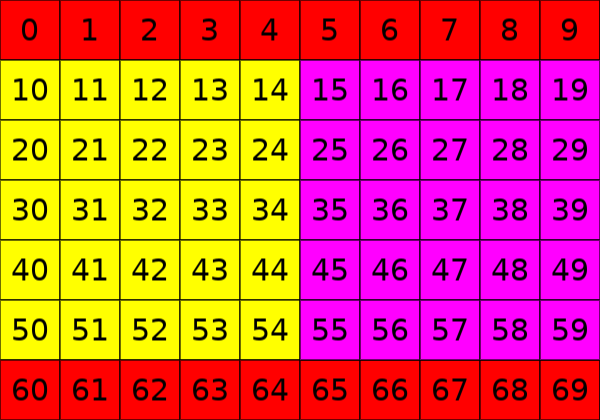
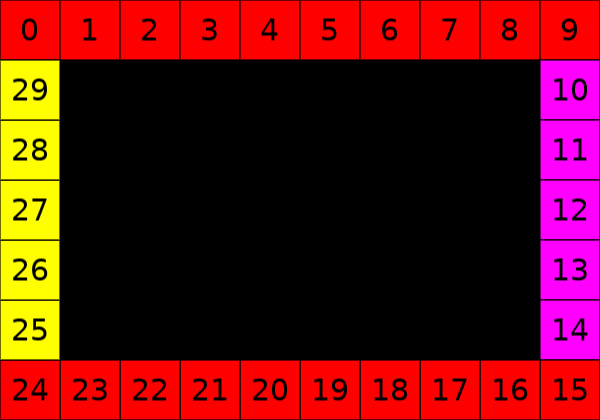
drop_corners = true
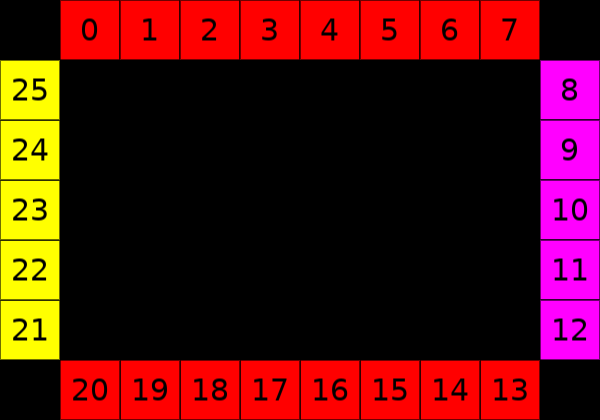
Numbers show the indices of RGB values before and after the transformation.
Reverse Converter
- Kind
-
ConvertReverseTransform - Config
{
    keep_first: boolean
}- Description
-
Reverses the order of elements. This plugin is mainly used to change the direction of LED data for an ambilight installation. If
keep_firstis set to true, the first value of input data is kept at it’s position.
keep_first = false
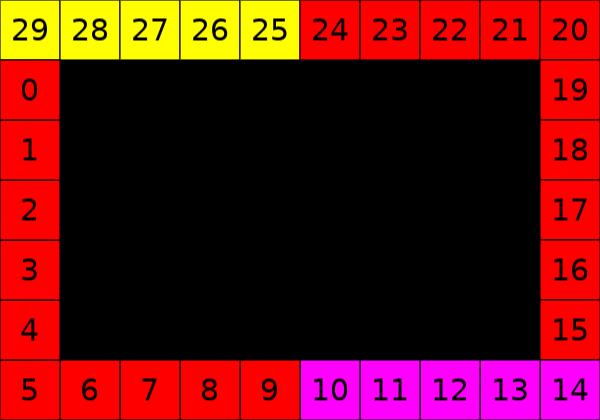
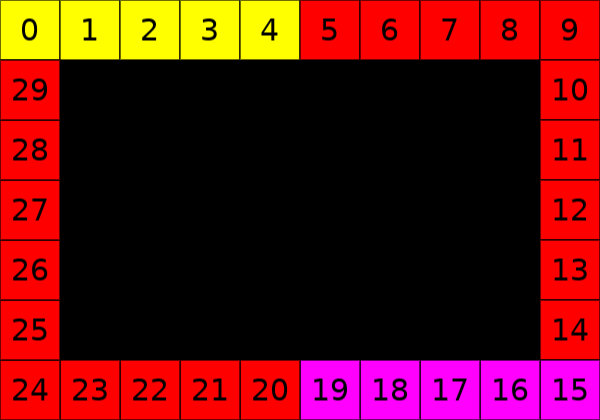
keep_first = true
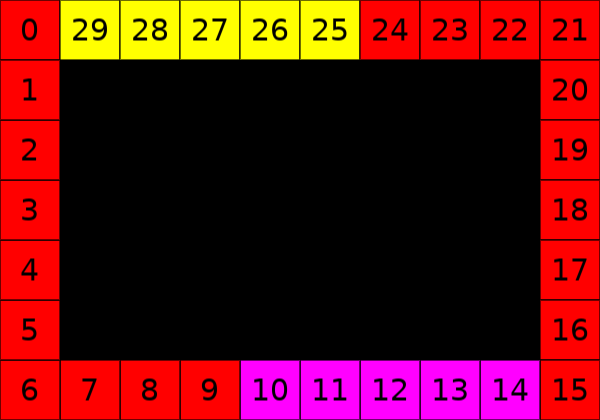
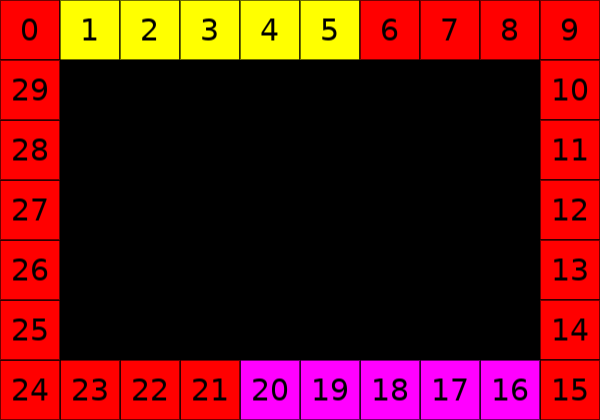
On the left image the numbers show the indices of input RGB values before the transformation. In the middle the indices belong to the elements transformed to make clear how the transformation is applied. Last image shows the indices of the output data after the transformation.
Shift Converter
- Kind
-
ConvertShiftTransform - Config
{
    amount: integer
}- Description
-
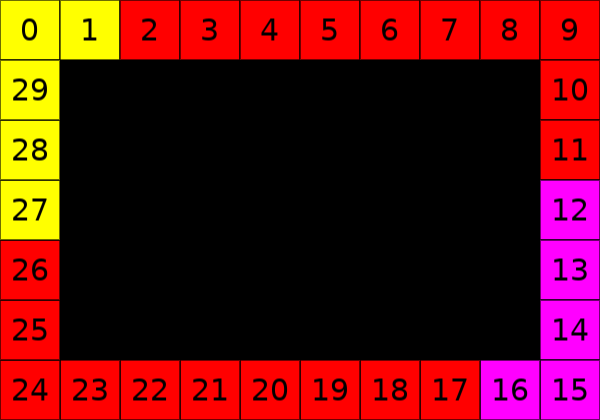
Handles the input data as ring buffer. All elements are shifted to the right (clockwise) by the number of positions specified by the
amountparameter. If the value ofamountis negative, elements will be shifted to the left (anti-clockwise). This plugin is mainly used to rotate elements in the data buffer to fit the start position of the LED stripe in an ambilight installation.
amount = 2
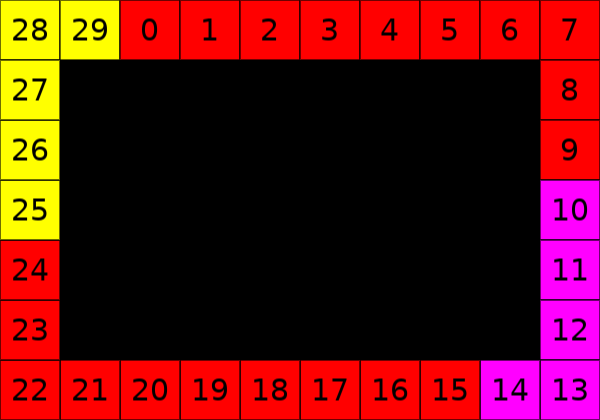
amount = -2
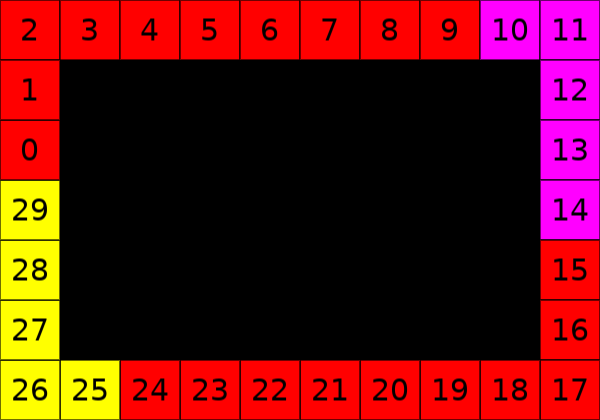
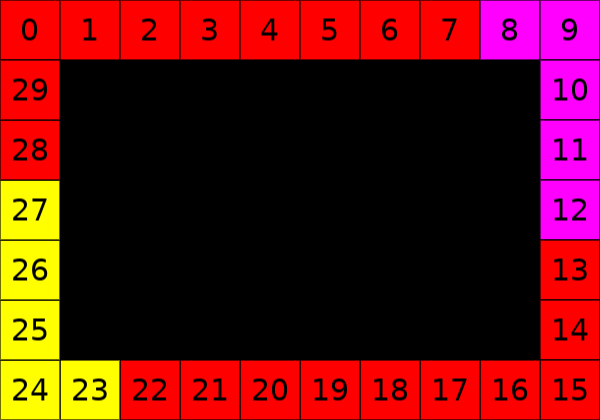
On the left image the numbers show the indices of input RGB values before the transformation. In the middle the indices belong to the elements transformed to make clear how the transformation is applied. Last image shows the indices of the output data after the transformation.
Crop
Crop plugins modify RGB data by removing some parts of it.
Crop Image Black Border
- Kind
-
CropImageBlackBorderTransform - Config
{
    threshold: integer(0-255)
}- Description
-
Detects the black borders in an image and crops them. The
thresholdvalue effects the decision if a color value is handled as black or not. 0 means only really black RGB values (0,0,0) will be considered.
Crop Image Fixed Values
- Kind
-
CropImageFixedTransform - Config
{
    top: integer,
    right: integer,
    bottom: integer,
    left: integer
}- Description
-
Crops an image based on the fixed config values.
Resize
Resize plugins modify the size of the object represented by RGB data.
Resize Image
- Kind
-
ResizeImageTransform - Config
{
    width: integer,
    height: integer,
}- Description
-
Resizes the image represented by the input RGB data to the resolution provided in the config. The transformation is done using the nearest-neighbor resampling.
Numbers are indices of RGB values in the output data array.
For developers
Some useful information for plugin development.
Remote grabber
Remote grabbers are separate application/processes running outside the lightoros engine.
They are responsible for grabbing frames from a video source and sending them to the engine.
There are two types of remote grabbers: Unidirectional and Bidirectional.
Bidirectional grabbers are using a two-way communication channel.
They not only send frame data to the engine, but also receive commands from it.
Unidirectional grabbers are using a one-way communication channel - they can only send data to the engine.
Protocol
Frame Content
Each data packet contains additional information about data length and the resolution of the frame. It starts with the data length (not packet length) followed by the width and height of the frame and the frame data itslef. Frame data is sent in RGB format using 24 bits per value.
| Block | Size | Description |
|---|---|---|
Data length |
4 bytes |
Size of the data packet |
Frame width |
2 bytes |
Width of the screen frame |
Frame height |
2 bytes |
Height of the screen frame |
Frame content |
* |
Raw frame RGB data, 1 byte per color. |
Packet length = sizeof(Frame content) + 8
All values have Big Endian byte order.
Size Control Command
The engine can tell the grabber the frame resolution it should send to the engine.
| Block | Size | Description |
|---|---|---|
Data length |
2 bytes |
Size of the command data |
Command |
1 byte |
0x10 for size control command |
Frame width |
2 bytes |
Width of the screen frame |
Frame height |
2 bytes |
Height of the screen frame |
Name Control Command
The engine can tell the grabber the name of the engine. It might be used by the grabber to show the user the name of the connected engine.
| Block | Size | Description |
|---|---|---|
Packet length |
2 bytes |
Size of the command data |
Command |
1 byte |
0x20 for name control command |
Name |
* |
Name of the client UTF-8 encoded |